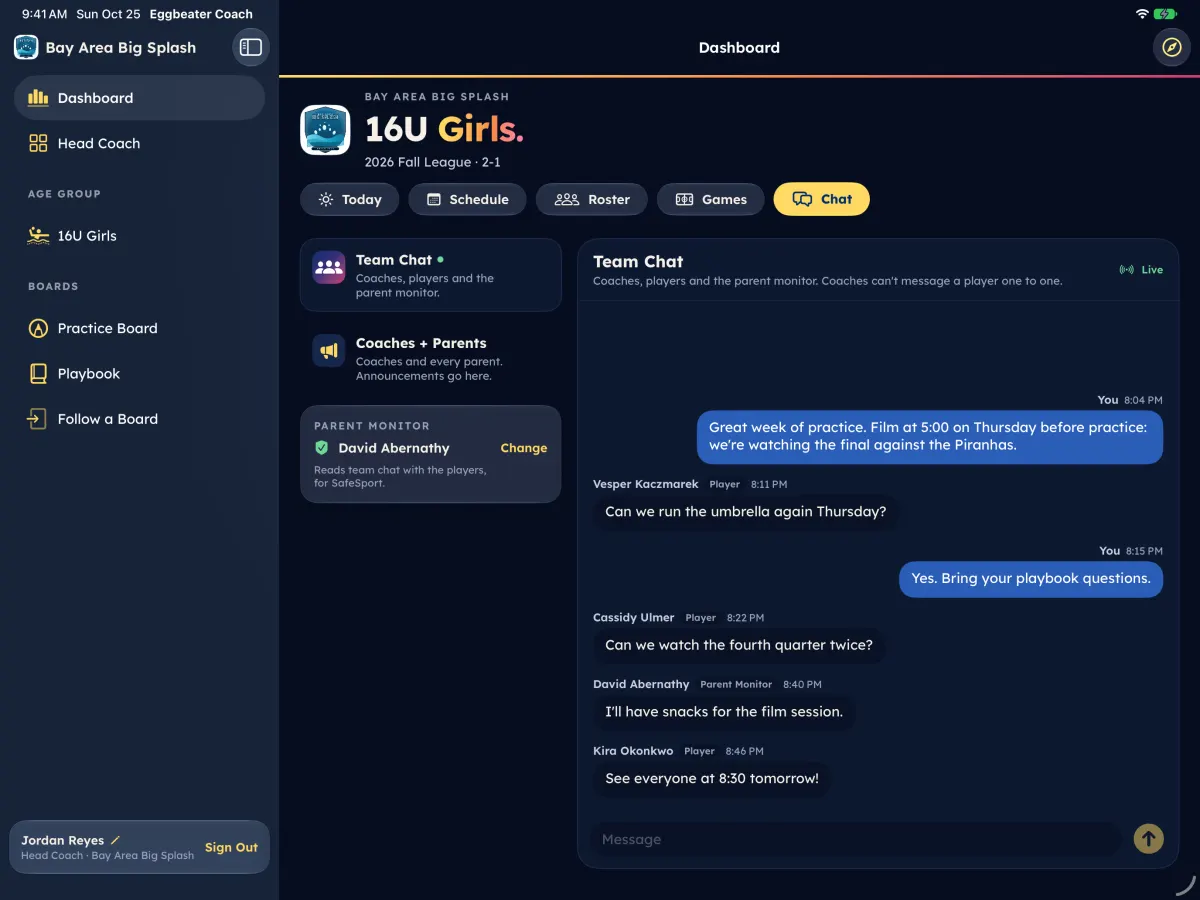
Chat needs your own coach account. Each team has Coaches + parents (coaches and every parent or guardian) and Team chat (coaches, the players a parent or guardian allowed, and one monitor parent).
Open team chat (SafeSport)
- Open Chat.
- Tap Pick the monitor parent (on the iPad, Choose the Monitor on the Parent Monitor card) and pick a parent on the team.
- Team chat opens. To change it, tap Change monitor. Close team chat closes it again.
Post an announcement
- Open Coaches + parents and turn on Post as an announcement (on the iPad, Announcement).
- Turn on Ask families to tap "Got it" if you need everyone to read it, and Also share with fans to put it in Team updates.
- Send. Open the Got it list to see who has it.
Keep it on track
- Hide (on the iPad, Hide Message) takes a message away from families. Only the club admin can bring it back.
- Report sends a message to the club admin's queue. Block hides a person's messages from you, and Blocked people undoes it. Chat rules shows the rules everyone agrees to before their first message.
- Mute and remove are for the club admin. See "Moderate team chat".
- You can edit your own message within 15 minutes, or delete it.