
Skip to content

Spectator guide

Welcome to Eggbeater. Follow every game live.

Follow live water polo games, get scores, and never miss a tournament update. Here is everything a spectator needs to get set up and follow along.

  • No account needed
  • Live scores every 5 seconds
  • Push alerts and reminders
How to follow your water polo team live with Eggbeater ·

Shorts

  • An alert for every water polo goal ·

  • Every water polo game in your calendar ·

All Eggbeater videos

Getting started

Open the link your club shares, pick your club and age group, and you are following live, in any browser or the native app.

What is Eggbeater?

Eggbeater is a free app for spectators. Coaches and hosts run live tournament schedules and real-time scoring, and send announcements. You can follow game times, live scores, players and teams all weekend. Use Eggbeater anywhere: on the web app in any browser, or install the iOS or Android app.

Open the link

Your club admin shares a link with you. It looks like eggbeater.app/?join=your-club. Open it in Safari (iPhone) or Chrome (Android).

Pick your club

If this is your first visit, you will see a club picker. Tap your club. If you have visited and selected your club before, this step is automatic.

Select your age group

Tap the age group of your player’s team. If you follow more than one age group, you can select several. You can switch any time from the header.

You are in

You will see the current tournament schedule with opponents, locations, dates and cap colors. Bookmark the page or install it to your home screen for quick access.

Following a big event with one code (master tournaments)

For a large event with several divisions, your club may give you a single master code instead of a club link. Enter that one code and you get the whole event, every division, with no install and no login.

  • One code, the whole event. The same code works on the web, the iOS and Android apps and the Apple TV app.
  • Full tabs. My Path, Pool Standings, All Games, a Watch List and the Schedule, all under the one event.
  • Pick your division. Choose your team’s division and you see only their path, while the master code still ties the whole event together.
No account and no install required. A master code is the simplest way to follow your team through a tournament with several divisions all weekend.

Install on your phone

Why install? Installing Eggbeater gives a full-screen app with faster loading and Live Activities on the lock screen. The native app is recommended: download “Eggbeater Water Polo” from the Apple App Store or Google Play. The native app gives the best overall experience and native push notifications.

  • iPhone (Safari web app). Open the web link in Safari. Tap Share. Tap “Add to Home Screen.”
  • Android (Chrome web app). Open the web link in Chrome. Tap the menu. Tap “Install app.” Tap “Install.”
Tip: for the most reliable notifications, use the native Eggbeater app from the App Store or Google Play.

Follow live

Pick the teams you care about, read the schedule, and follow live scores and your own player in real time.

Pick your team

The pills below the tournament header control which age group you are following. Your selection is remembered between visits.

  • Following several teams. If you have players in different age groups, select more than one pill and the app shows a separate section for each selected group.
  • A and B teams. Some age groups have more than one team, such as Team A and Team B, or custom labels like Black and White. In the header picker, expand the selected age group and choose a team, or All to follow both.
  • Favorites. Tap the star to favorite a team. Power-tap once and it can become your default view.

Schedule tab

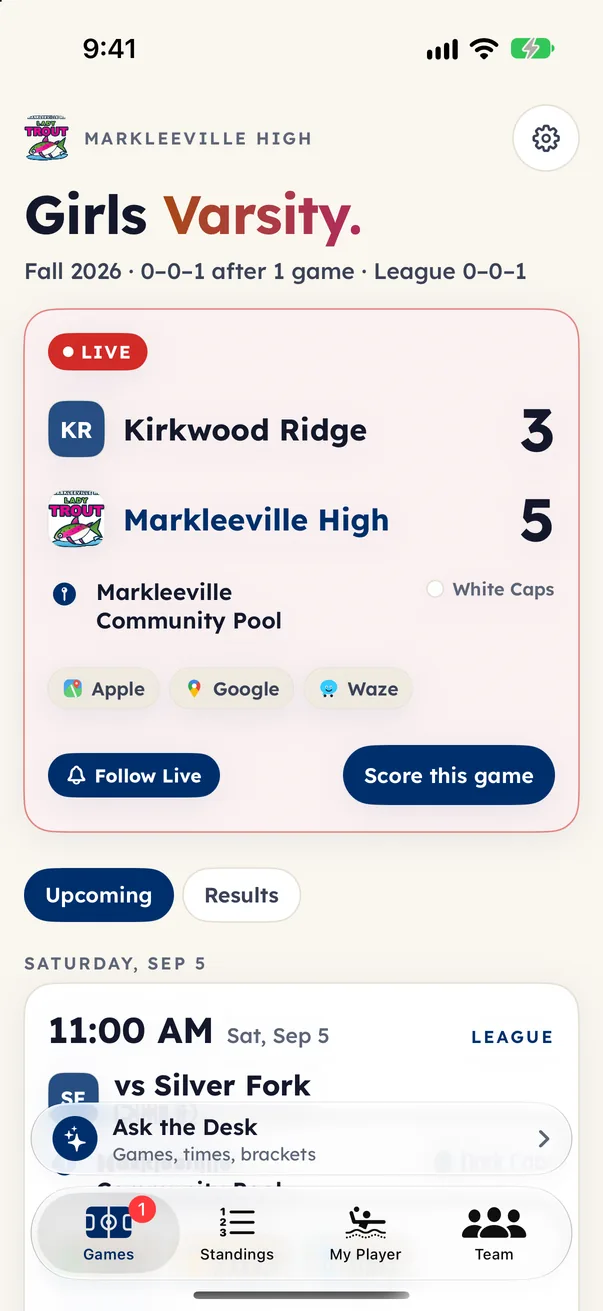
The Schedule tab is the first screen in the app. It includes a Next Game card (opponent, time, location), a day picker and a score list grouped by day for tournaments that run several days, a countdown and an offline indicator, and directions in Apple Maps, Google Maps and Waze.

  • What the cap color means. Each game card shows the posted cap color, dark or white, the same in Schedule and in Scores.
Upcoming mode: sometimes your coach posts tournament details before a game time is final. You may see a “coming soon” message until the schedule is ready.

Live scores

When someone at the pool is scoring a game, you will see it right away: a pulsing LIVE badge on the game and the Scores tab, the Next Game card, and the live score. Scores refresh automatically every 5 seconds.

  • Box score. Expand a game in Scores to see goals, assists, attempts, 5-meter goals, shot stats, exclusions, earned exclusions and goalkeeper saves.
  • Apple Watch companion. If you use the Apple Watch app, Eggbeater can show your team, the live game and the schedule on your wrist. Live goals can trigger an alert on your wrist.
  • Apple TV. Eggbeater has a native Apple TV app. It comes with the iPhone and iPad app, with nothing extra to buy. It is a read-only companion that puts live scores, the bracket, standings, the schedule and rosters on the big screen. There is no scoring on the TV. Load a tournament by entering the 6-character TV code (the same age-group share code from the spectator app), or pair your iPhone: the TV shows a pairing code you enter in the iPhone app’s “Send to Apple TV” to send your selected team to the screen.
  • Share results. After a game ends, tap Share Result to generate an image of the final score for iMessage or social sharing.
  • Updates every 5 seconds. While a game is live, the score, clock and play-by-play refresh roughly every 5 seconds. When a game shows “Final · signed off by [referee],” the score is locked, the referee has signed off and the result is official.
  • Why some games show no clock. Eggbeater scorers can pick between two modes on each device: Clock ON (the live scoreboard displays a running clock) or Clock OFF (the scorer records by quarter without a visible clock).
The Eggbeater app on a phone: the Games tab with the live game first, 3 to 5, the pool with map links, then the next game on the schedule

Box scores for every player: what the columns mean

Every game has a box score for every player, visible on the public tournament page and the Scores tab. Here is what each abbreviation tracks:

  • G. Goals scored.
  • A. Assists (passes that directly led to a goal).
  • St. Steals (taking possession directly). A forced ball under is the handler’s turnover, not a steal.
  • TO. Turnovers (possessions lost: offensive fouls, bad passes and so on).
  • FB. Forced ball under: tight defensive pressure forces the ball-handler to push the ball under the water. It is an infraction that loses possession, so it is logged as that player’s turnover. The defender does not get a steal for it, but it is a strong defensive moment driven by pressure.
  • Excl. Exclusions the player was given (major fouls / kickouts they committed).
  • Earned Excl. Exclusions the player drew (they were fouled and the opponent was kicked out). An offensive stat.
  • Banned·Red. The BENCHED count: on a player’s third kickout in a game they are out for the rest of it, shown with a BENCHED chip. Common fouls do not count toward this. Only major kickouts do.
  • Saves. Goalkeeper saves. Totals sum for each player down the table.

The BENCHED chip

If a player picks up three kickouts (major fouls) in a single game, they are out for the rest of that game. This is a referee rule, not an Eggbeater setting. When the BENCHED chip appears, you cannot tap that player on the live game card. Common fouls do not count toward the limit of three. The BENCHED status is reached only when three major exclusions happen.

Follow your player (My Player)

The Roster tab includes a special “My Player” card at the top.

  1. Select your player’s name.
  2. See their current stats in one place.
  3. Stats update live during recent games.
  4. Your selection is saved for the next visit.
  • What you will see. Goals (total this tournament), Assists, Steals, Exclusions, Banned·Red, and Recent Games (stats and scores for each game).
  • Three stat scopes. Switch My Player between Event (this tournament), Season and All-Time, with play-by-play behind each game.
  • Shareable player report. Make a clean report for one player that you can save or share. There is also an ungated PDF a spectator can be handed directly.
  • Link my player across clubs. If your player plays for more than one club, link them so their All-Time stats combine across clubs into one player.
  • More than one player? If you follow several age groups, each one gets its own “My Player” card so you can follow each player in each group.
  • Season Stats. Tap Season Stats in Roster to see totals across the season, including goals, assists, games played and goals per game.

Brackets and leagues

See your team’s projected path through the bracket, follow a league that runs for weeks, and browse season history.

Bracket and standings

Open Bracket to see where your team is headed for the next round. The bracket is laid out Apple-Sports style: circle-logo matchup cards, group standings tables and a connected tree you can pan across, with placement-game labels (“1st / 3rd / 5th Place Game”) and gold, silver and bronze medals on the finals. On bracket tournaments you can switch between My Path and Full Draw to see either your branch or the wider bracket tree.

  • My Path projection. The app forecasts your route round by round with win and lose forks: projected opponents, scheduled game times and clinched-finish notes, all updating as results land.
  • Tap a game for detail. Every game opens a view with three tabs: Stats (the box score for every player, with shot percentage), Play-by-play (the running event log with the score) and This Tournament (the team’s other games).
  • Bracket points. Win (W): 4 points. Shootout Win (SW): 3 points. Shootout Loss (SL): 2 points. Loss (L): 1 point. Forfeit (F): 0 points.

Following a league

Tournaments are weekend events. Leagues are seasons that run for weeks, with teams playing each other on a recurring schedule (Saturday mornings, every other Sunday and so on). Eggbeater handles both, and following a league works almost identically to following a tournament. Look for a League tab in the app, or a /leagues/ link from your club.

  • Live standings. The table ranks again each time a game is finalized. The tiebreaker chain shows where you sit.
  • Weekly schedule. This week’s games go live, and past results move into the record.
  • A calendar for each team (.ics). Subscribe once and every league game, plus any reschedule, appears in your own calendar automatically.
  • Week-by-week notifications. Push notifications and iOS Live Activities read “Week N · vs Opponent” so a season of many weeks feels like one continuous event.
Leagues with several clubs: the spectator page covers every team, whichever club it belongs to. Hidden standings: some leagues hide the standings table until partway through the season so nobody fixates on a tough first week.

History and season stats

The History tab stores past tournament results for your age group, along with the season record, stats for each game, placement and expandable game results. When a tournament is done, the lineup falls back to “Stay Tuned” automatically while the completed event remains in History.

  • Season record. Rolls the record and standings of all tournaments into one view, with wins, losses, goals for, goals against and a win-percentage ring.

Alerts and account

Sync games to your calendar, turn on push notifications, and manage your account and appearance.

Calendar sync

Add games to your calendar so they appear automatically. In Settings, open Calendar & Notifications:

  1. Tap Connect.
  2. Sign in with Google.
  3. Choose a calendar.
  4. Games sync automatically with opponent, time and location.
  • The app syncs about every 20 minutes. Use Sync Now for an immediate refresh.
  • Apple and Outlook. Subscribe through the team’s .ics calendar feed. It works the same way once added.
When the schedule changes, your calendar updates automatically on the next sync.

Push notifications

Stay in the loop. Enable push notifications in Settings, under Calendar & Notifications, so you get alerts even when the app is closed.

  • Game Scores. Every goal, end of quarter and end of game.
  • Schedule Changes. Game time, location or opponent changes.
  • Announcements. Messages from your coach or club admin.
  • Game Reminders. 30 minutes, 1 hour or 2 hours before game time.
iPhone: web push requires iOS 16.1 or later, and the app must be opened from the home-screen icon. The native iOS app is the easiest option.

Settings and account

Sign in with Google. Signing in is optional. It syncs your preferences across devices, including age groups, favorites and My Player selections.

  • Appearance. Choose your look in Settings, under Appearance: Light (bright in all sun), Dark (best on the pool deck or in low light) or System (matches your device setting).
  • Multiple clubs. Add more than one club in Settings if you follow several programs. Use Add Club to join another, and Return to Club Picker to switch fully back.

Tips and common questions

Quick wins and the questions spectators ask most.

Quick tips

  • Bookmark it. Save the link to your home screen for one-tap access.
  • Enable reminders. Get a heads-up before games.
  • Follow your player. Set up My Player in Roster.
  • Sync your calendar. Games appear automatically with every update.
  • Try dark mode. Easier to read on the pool deck.
  • Check the bracket. See your team’s next game and path.

The schedule says “Coming Soon”. When will games be posted?

Tournament details are posted, but the full game schedule is not ready yet. Check back soon, or turn on notifications to be alerted when games are posted.

Live scores are not updating. Is anyone scoring?

Live scores only appear when a designated scorer is entering them at the pool. If no one is scoring, you will see the posted schedule until the game goes live.

My player’s stats look wrong

Stats come from live scoring. If something was credited to the wrong player, your coach or club admin can correct it. Corrections reach everyone within seconds.

How do I switch age groups?

Use the age-group pills at the top, or update your selection in Settings. You can follow several at once.

Notifications are not working on iPhone

Use the native iOS app, or open the web app from the home-screen icon on iOS 16.1 or later. The native app is the most reliable for push.

The app looks outdated or stale

Scroll to the bottom of Schedule and tap Force Refresh, or close and reopen the app.

Can I use Eggbeater on my computer?

Yes. Open the same link in any laptop or desktop browser.

Do I need an account?

No. Following games is free with no account. Signing in is optional and only syncs your preferences across devices.

Questions

Frequently asked questions

How do I follow my player’s water polo game live?

Open the link your club shares, pick your club and age group, then open the Roster tab and select your player under “My Player.” You will see live goals, assists and recent games, and you can turn on push notifications for every score.

Is the Eggbeater water polo app free for spectators?

Yes. Following live scores, schedules and brackets is free with no account required. An optional Premium Spectator upgrade adds following several teams, notifications and stats history.

How do I get push notifications for water polo game results?

Enable notifications in Settings, under Calendar & Notifications. On iPhone, use the native app (or the home-screen web app on iOS 16.1 or later) for the most reliable delivery.

Where can I see tournament brackets for water polo?

The Bracket tab shows your team’s projected path (My Path) and the full draw (Full Draw), updating live as games are scored.

Ready to follow your team?

Ask your club admin for the link, or open the app. Following live scores is free, with no account required.