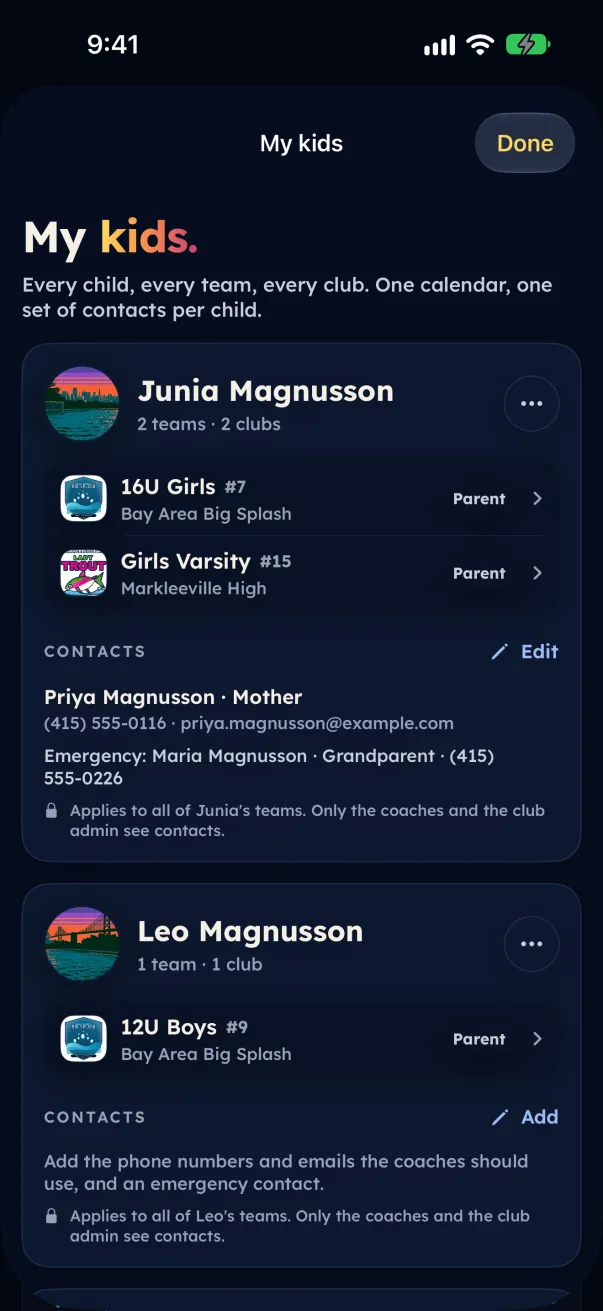
My kids shows one card per child, with every team and club they play for, their status on each team and their contacts. One child, one calendar color, one set of contacts.
Add a child or another team
- Open My kids: on iPhone and iPad, tap your kids' pictures or My kids at the top of the Family tab; on Android and the web, tap your initials at the top of the screen, then My kids.
- Tap Add a child.
- Tap I have a team code or invite link if the coach gave you one, or Find your child's team if the team does not use team tools yet.
Rename a child
- In My kids, tap ⋯ on the child's card (on Android and the web, open the child).
- Tap Rename and type the name you want. Only you see it. Leave it empty to use the team's roster name.
Two cards are the same child
- Tap ⋯ on one of the cards, then These are the same child….
- Pick the other card and tap Put them together (on Android and the web, Same child).
Eggbeater may ask on its own: Are these the same child? Tap Same child or Different kids.
One card is really two children
- Tap ⋯ on the child's card, then Not the same child, and pick the team. On iPhone and iPad you can also press and hold the team row.
- Tap Make it a separate child. The team becomes its own card. You can put them together again later.
Each team row shows a status: Parent or Player once you are on the team, Waiting for the coach while a request is open, and Claimed by you for a team you claimed.