Connect a Colorado System 6 console to Eggbeater Desk.
A cable on the console’s Scoreboard jack, a USB serial adapter and your laptop. The Desk reads the clock, the period and the shot clock straight off the board, and offers every goal and exclusion your table enters — cap number included — as a one-tap prompt.
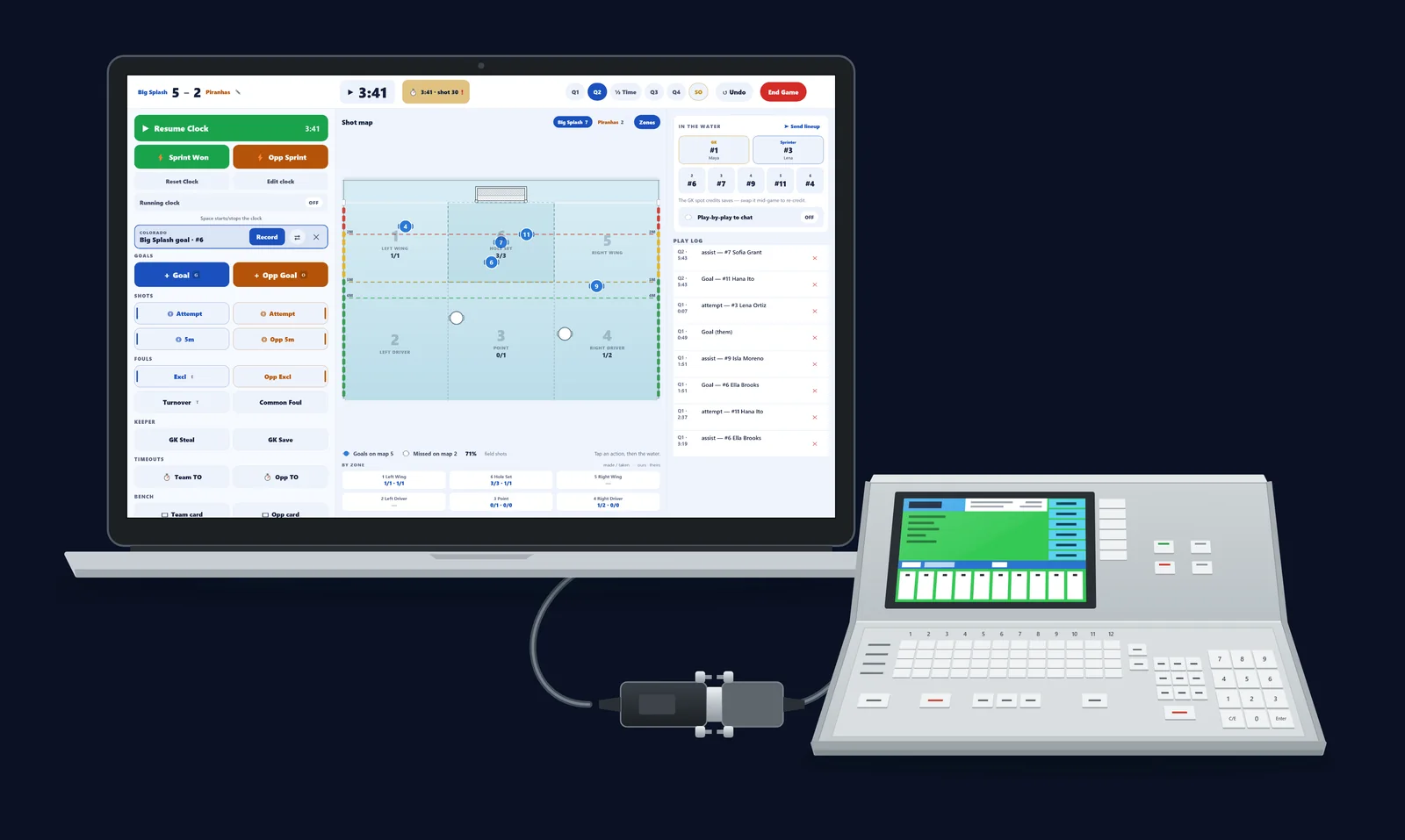
The console keeps the time. You keep the game.
Eggbeater Desk works with Colorado Time Systems System 6 consoles. The console already sends its digits to the pool’s scoreboard through its Scoreboard jack, and the Desk reads the same signal. Once it’s connected, the game clock, the period, the breaks and the shot clock follow the console — and every goal and exclusion the table enters shows up on the Desk with the cap number, one tap from the record.
This is the setup we ran at Battle By the Bay — Encinal High School, Alameda, October 2–3, 2026 — written down step by step, from the parts to the final horn. For everything the Desk does with the console once it’s connected, read the launch post.
What you need
- Your club on Eggbeater — or a tournament code. Step 0
- A ¼-inch scoreboard tap with a pass-through. Step 1
- A USB-to-RS-232 serial adapter. Step 1
- Eggbeater Desk on a Windows PC or a Mac. Step 0
Step 0 · Before game day: put your club on Eggbeater, and install the Desk
The Desk opens your club’s games, so your club has to be on Eggbeater first — with its team, roster and games, and a scoring password for whoever runs the table. Do it at home, before game day.
Clubs
The Club tier starts with a 14-day free trial — no credit card. Then add your team, roster and schedule, and set a scoring password for whoever runs the table. Create your club →
High schools
Claim your school for the High School program. Your first season is free. Claim your school →
Tournaments
Ask your tournament director for the tournament code. It opens every game of the event on the Desk: on the front door, choose I have a code. No account needed.
Plans and trials: see pricing.
Install Eggbeater Desk
Console reading runs on a Windows PC or a Mac. iPad and Android tablets run the Desk without the console — tablets have no serial port. The console features are rolling out now, so update the Desk before game day.
Step 1 · Get the parts
Six parts, from the console to the laptop. The numbers match the picture.
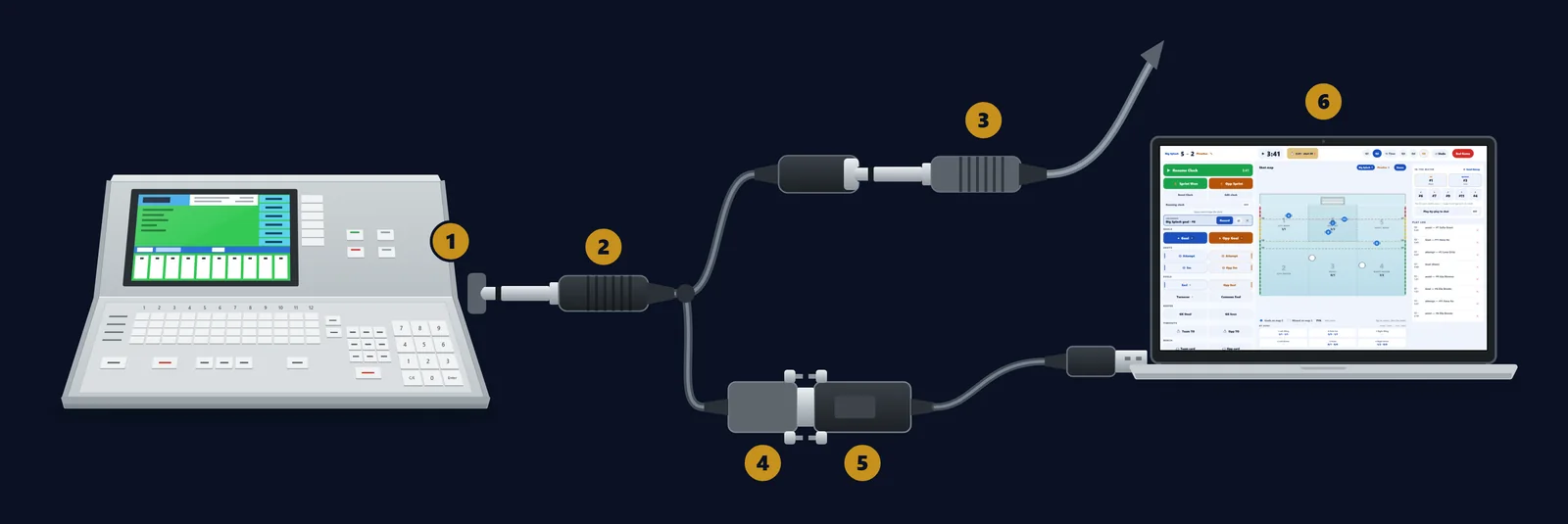
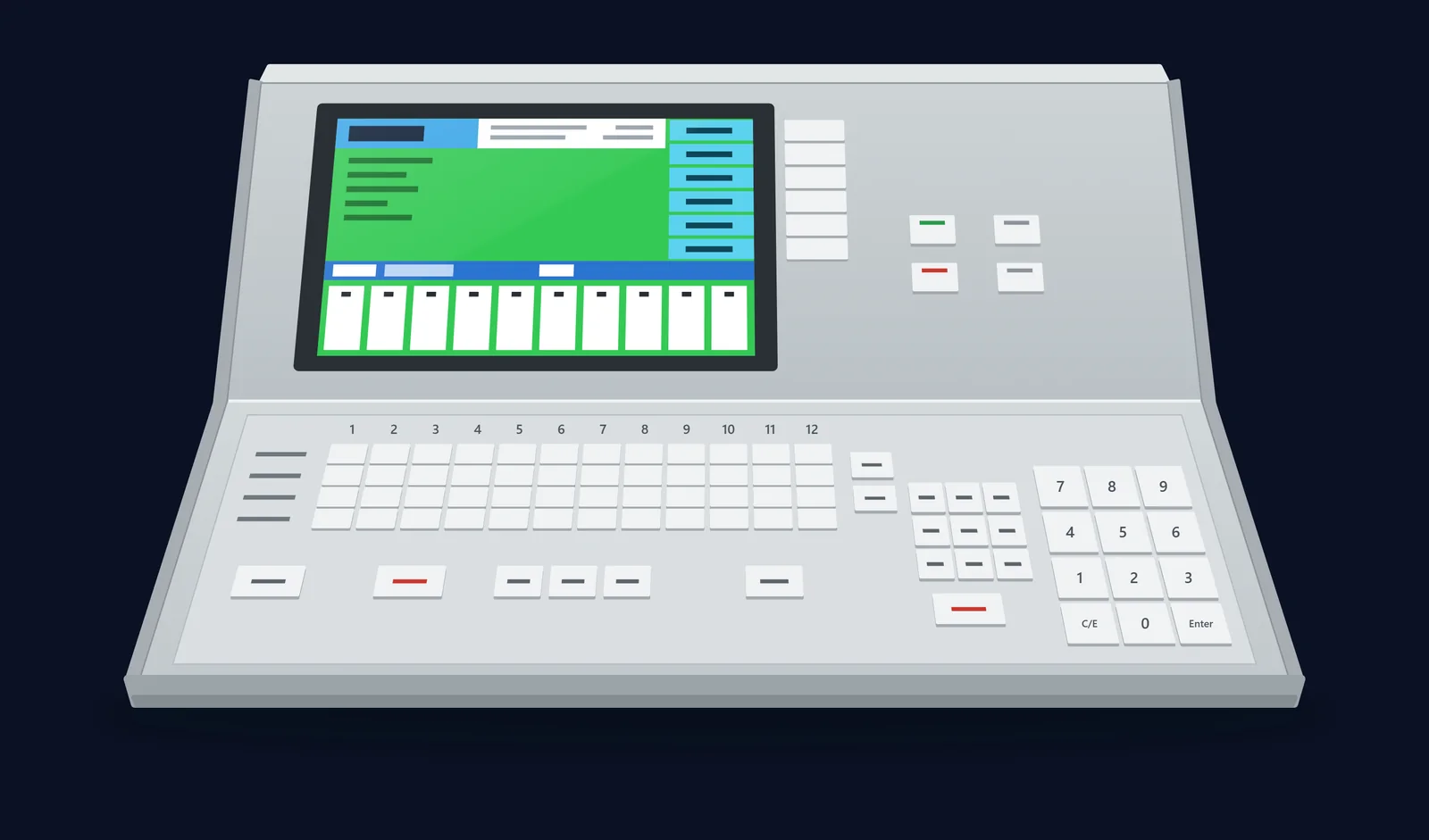
- The console’s Scoreboard jack. A ¼-inch (6.35 mm) phone jack labeled Scoreboard. It’s a one-way serial feed of the board’s digits — the same signal the pool’s scoreboard reads.
- The tap: a ¼-inch mono plug. A ¼-inch mono (TS) plug wired to a DB-9: tip → pin 2 (receive data), sleeve → pin 5 (ground).
- A pass-through on the tap. The pool’s scoreboard cable plugs back in here, so the scoreboard keeps working. Same job, off the shelf: a ¼-inch Y-splitter plus a ¼-inch-to-DB-9 lead.
- The tap’s DB-9 end. The 9-pin connector on the tap’s other end. It goes into the adapter.
- A USB-to-RS-232 serial adapter. A real RS-232 (DB-9) adapter. Not a “TTL”, 3.3 V or 5 V serial cable — those don’t speak the console’s signal.
- Eggbeater Desk on a Windows PC or a Mac. Console reading needs a serial port, so it runs on Windows and Mac. Install the Desk in step 0.
The one we used at Battle By the Bay: a Tripp Lite USB-to-serial adapter with a Prolific PL2303 chip. Windows installed the driver by itself, and it appeared as COM5.
On a Mac: install Prolific’s PL2303 macOS driver first, or use an adapter with an FTDI chip — a Mac runs those without a driver.
| The wiring and the line | What it means |
|---|---|
| Tip → pin 2 | Receive data |
| Sleeve → pin 5 | Ground |
| 9600 · 8E1 | 9600 baud, 8 data bits, even parity, 1 stop bit — the console’s Scoreboard setting FAST |
| 2400 | The console’s Scoreboard setting SLOW |
Step 2 · Check the console’s scoreboard speed
On the console, open Setup → Scoreboard and read the speed.
- FAST — pick 9600 in the Desk.
- SLOW — pick 2400 in the Desk.
Don’t change it. The pool’s scoreboard is set to match — you’ll just pick the same speed in the Desk in step 5.
Step 3 · Plug in
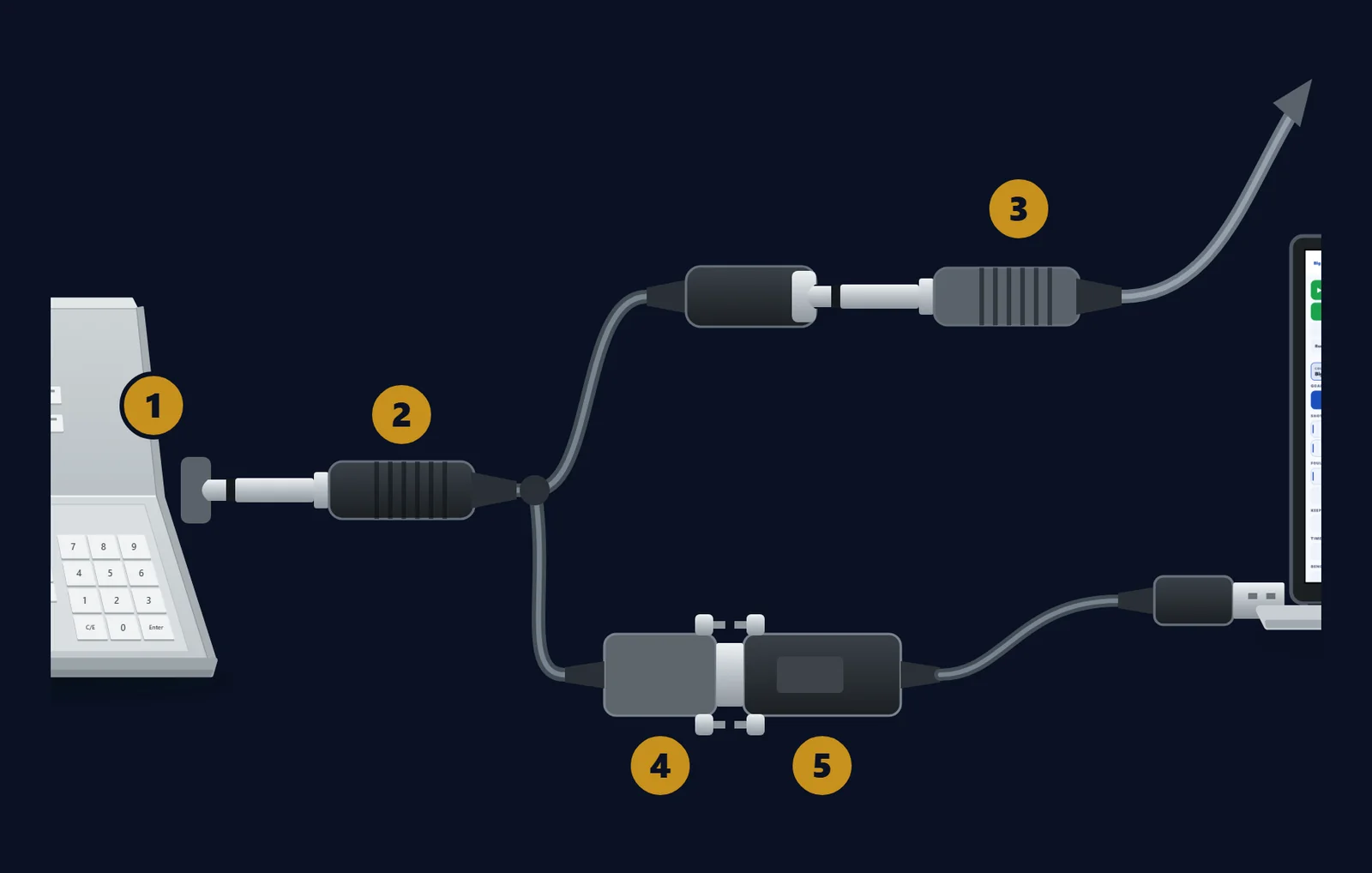
Do this before the game starts. The numbers match the parts in step 1.
- Take the scoreboard cable out of the console’s Scoreboard jack.
- Put the tap’s ¼-inch plug in that jack.
- Plug the scoreboard cable into the tap’s pass-through.
- Plug the tap’s DB-9 into the adapter.
- Plug the adapter into the laptop’s USB port.
Glance at the scoreboard. It should still be showing the clock. If it isn’t, check that the scoreboard cable is all the way into the pass-through.
Step 4 · Open your game in the Desk
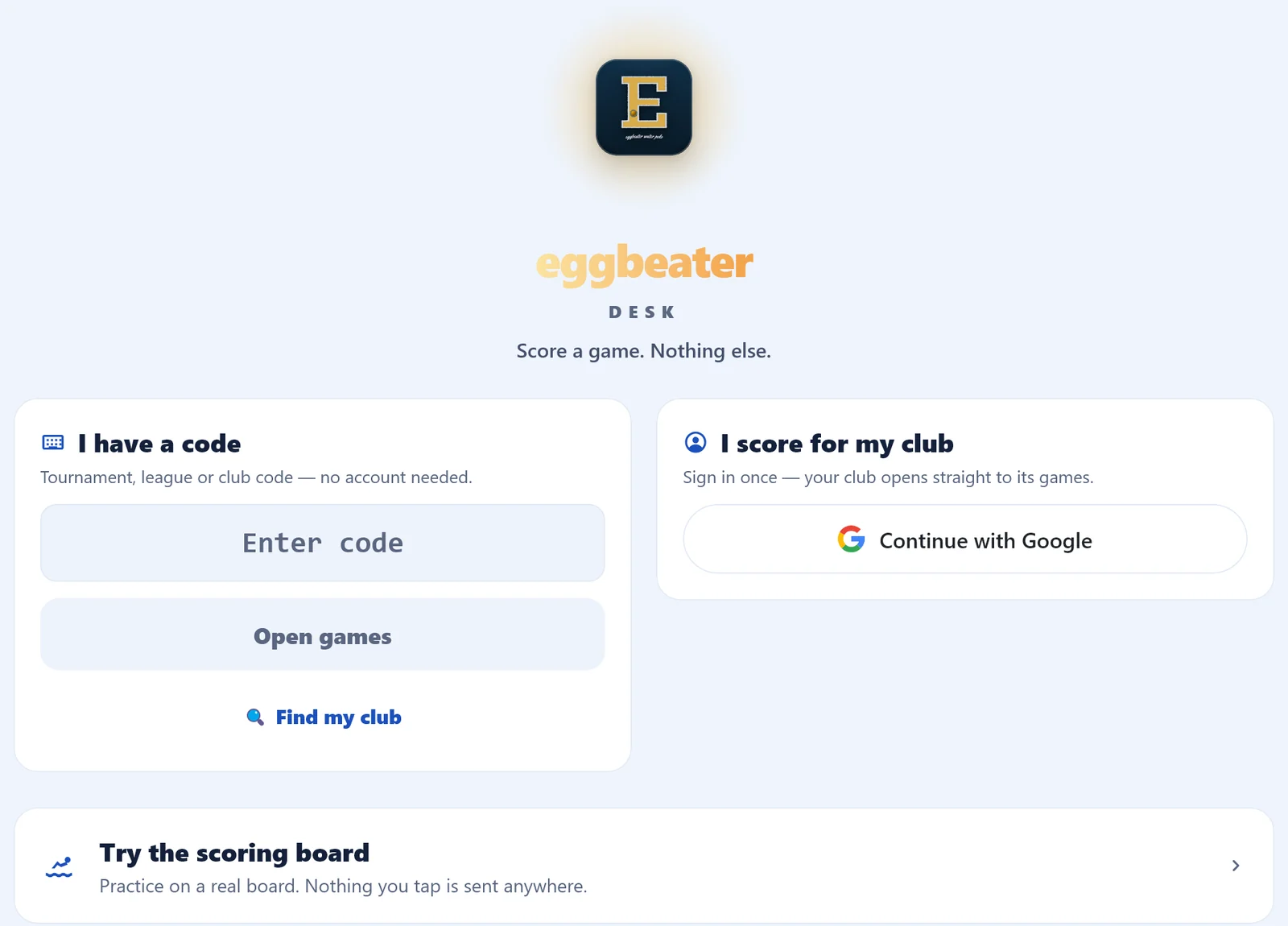
Open Eggbeater Desk. On the front door, choose one:
- I have a code — a club, league or tournament code. No account needed.
- I score for my club — sign in with Google, and your club opens straight to its games.
Pick the game, then enter the scoring password. The board opens on the game.
If the Desk says “This club requires a join password”, that’s your club’s join password, from your club admin — not the scoring password.
Want a dry run first? Try the scoring board is a practice board. Nothing you tap is sent anywhere.
Step 5 · Connect the console
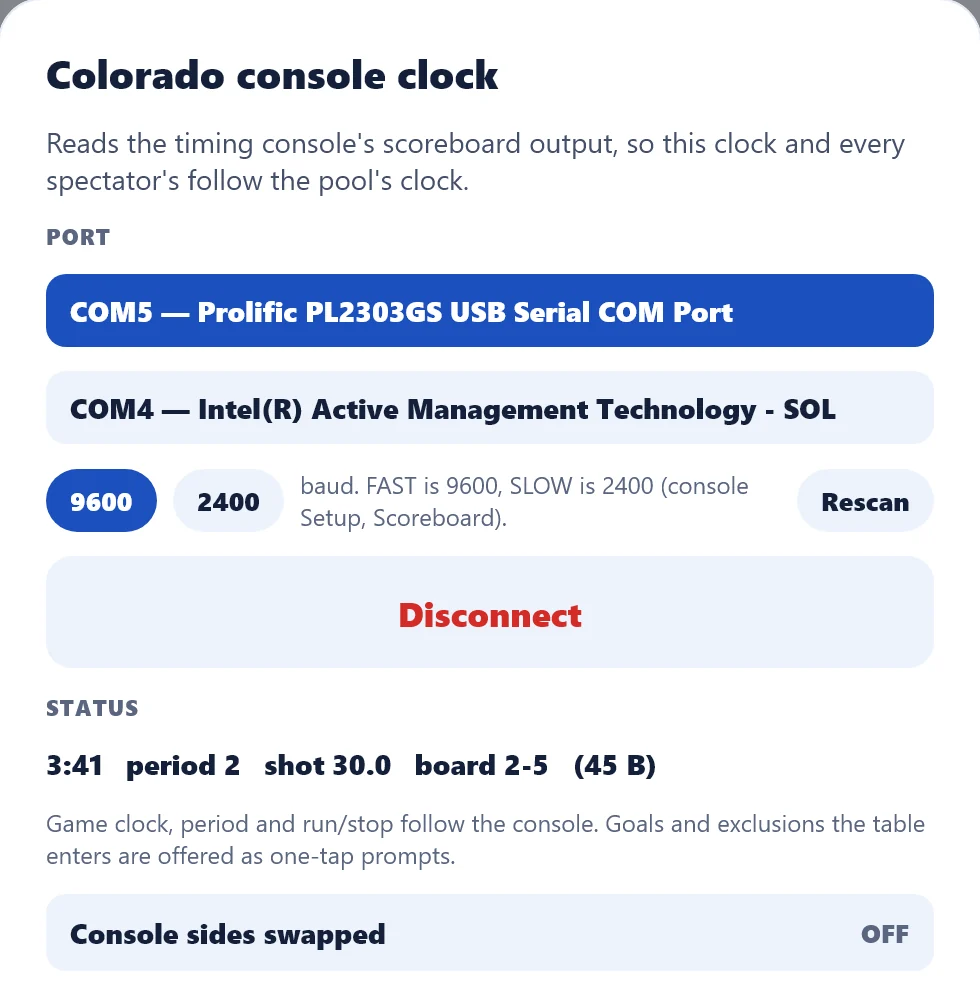
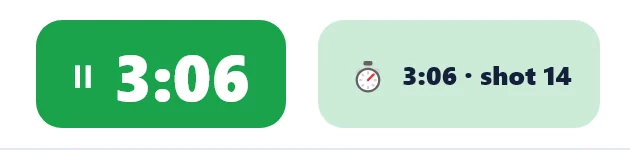
Click the Console chip beside the clock. The Colorado console clock panel opens.
- Pick the adapter’s port. On Windows it reads like “COM5 — Prolific PL2303GS USB Serial COM Port”. See more than one? Pick the one that names the adapter, not the laptop’s own port — like the COM4 in the picture.
- Pick 9600 — or 2400, to match step 2.
- Click Connect.
The status line reads “Waiting for data” until the first bytes arrive. Then it shows the console’s clock, period, shot clock and the board’s score, with a byte count in parentheses that keeps climbing. That’s the Desk reading the console.
The Desk remembers the port and the speed for next time.
Step 6 · Check the sides
The console keeps score as home and guest, not by cap color. So when the first goal goes up, look at the team the prompt names.
- Right team? You’re set.
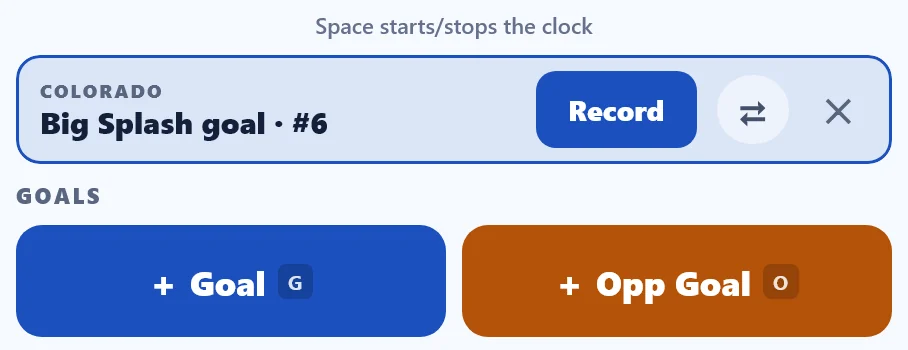
- Wrong team? In the Colorado console clock panel, switch Console sides swapped on — or tap ⇄ on that goal prompt, which does the same thing for the whole session.
- One exclusion on the wrong side? Exclusions can land on the wrong team even when goals are right. Tap ⇄ on that exclusion prompt — it flips just that one — then Record.

Step 7 · Score the game
There’s no clock to run. The game clock, the period, start and stop, and the shot clock all follow the console. You still tap shots, saves, turnovers, timeouts and cards on the Desk, the same as always.
Goals and exclusions arrive as prompts
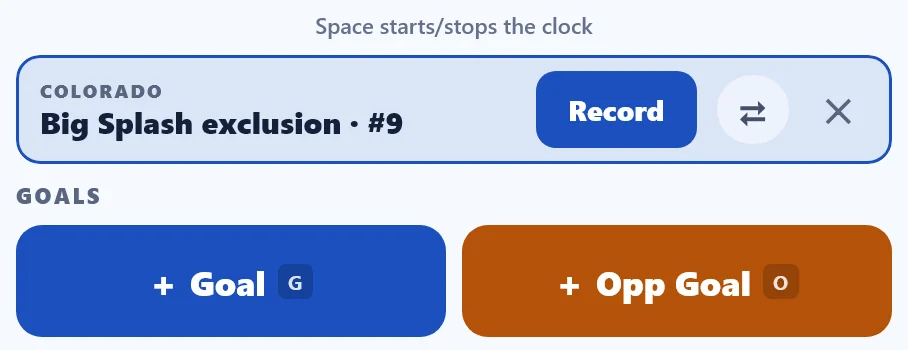
When the table enters a goal or an exclusion on the console, it appears on the Desk as a COLORADO prompt with the cap. Record fills in the player and opens the rest — shot type, assist, where it went in, where it came from — and you can skip any step. ✕ dismisses it. No cap on the board? The prompt says “which cap?”, and Record asks you who it was.
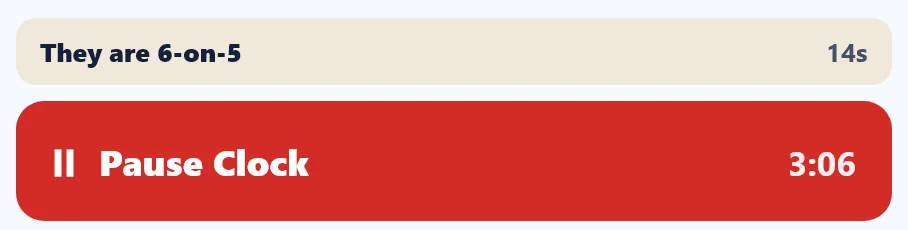
Nothing counts twice. Nothing is ever recorded by itself. Every prompt waits for your tap.
Quarter breaks and half time
The quarter holds at 0:00 and the break counts down beside the clock. Spectators see the same countdown.

The scoreboard check
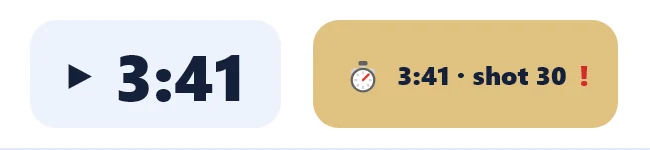
The Desk compares the board’s score with its own. If they differ, the chip turns gold and a red ! appears on it. The Desk never changes the score on its own — see Troubleshooting.
Step 8 · End the game
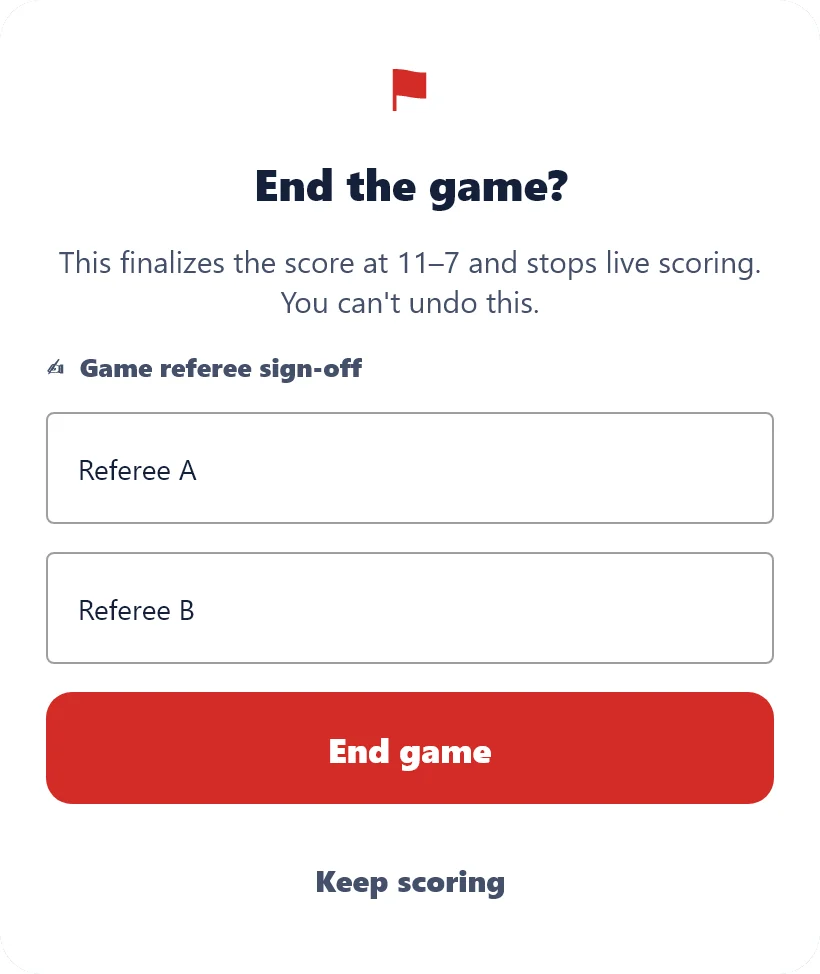
At the final horn, click End Game.
- If your host requires it, type both referees’ names under Game referee sign-off.
- Click End game. The final publishes with the sign-off: “Signed off at the desk by Referee A and Referee B.”
Resetting the console for the next game never moves the finished one.
Next game: open it on the Desk, click the Console chip and Connect. The port and the speed are already picked.
Troubleshooting
| What you see | What to do |
|---|---|
| “No serial ports found. Plug in the adapter, then Rescan.” | Plug the adapter in, then click Rescan. On Windows, Device Manager → Ports (COM & LPT) should list it. On a Mac, install the Prolific driver, or use an FTDI adapter. |
| The chip says “No signal”, the status stays on “Waiting for data”, or the byte count doesn’t climb | Is the plug in the Scoreboard jack? Not the console’s DB-9 COM port — that’s the results computer’s link, not the clock. Does the speed match the console’s Scoreboard setting? Is the adapter RS-232, not TTL? |
| “Could not open COM5” | Another program is holding the port — only one program can use a serial port at a time. Close it, then click Connect. |
| The numbers jump around or look wrong | Wrong speed — try the other one. Or it’s a TTL adapter: use an RS-232 adapter. |
| Prompts name the wrong team | Switch Console sides swapped on — ⇄ on a goal prompt does the same. Just one exclusion? Tap ⇄ on that exclusion prompt. |
| A red ! on the chip | The board and the Desk disagree on the score. Check the play log. Fix it with Undo, or tap the score to Fix the score — or ask the console operator to fix the board. |
| The console was reset between games | The finished game keeps its final. Open the next game and connect. |
Need help?
Start with the Eggbeater Desk guide: scoring a game on the Desk, the shot map, and the rules the desk keeps.
Open the Desk guide →Colorado Time Systems and System 6 are trademarks of their owner. Eggbeater is not affiliated with or endorsed by Colorado Time Systems.