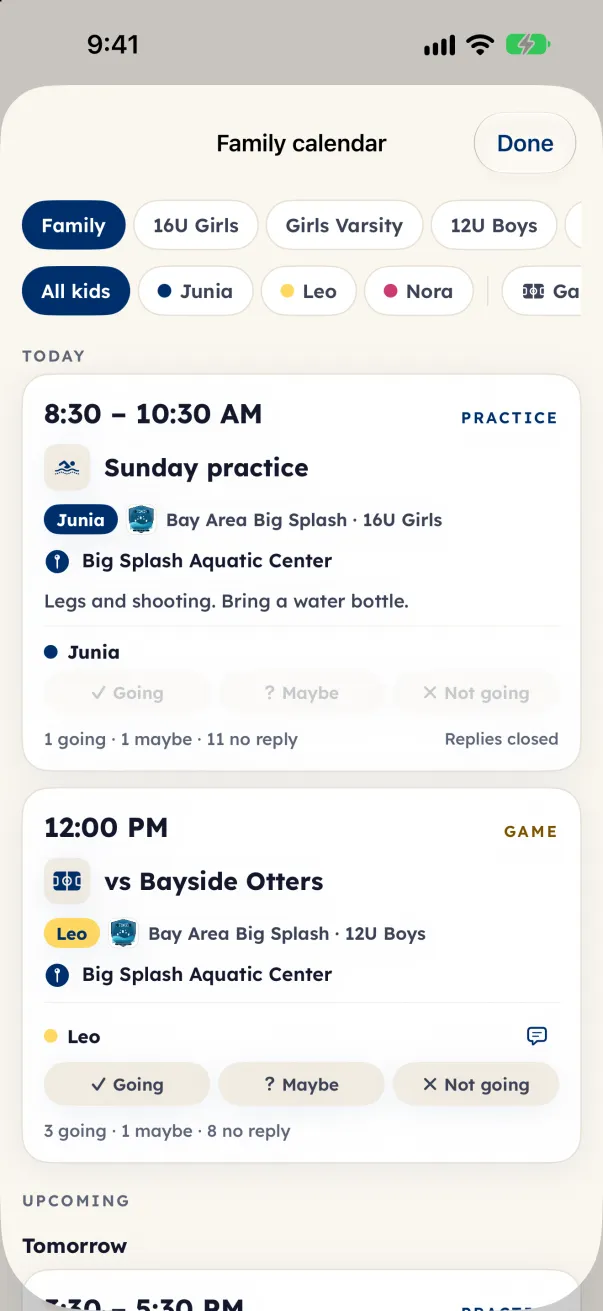
- Open Family calendar from the top of your family hub. On iPhone and iPad it is also in each team's ⋯ menu and on the Team tab.
- Use the pills to show All kids (with two or more kids), one child, or Games only.
- On an event, find your child's reply row and tap Going, Maybe or Not going (Can't go on Android and the web). Tap your choice again to clear it.
- To tell the coach something, tap Add a note (on iPhone and iPad, the speech bubble; it opens Note for the coach). Only the coaches see notes.
Good to know
- Each event shows its time (or Time TBD), what it is (game, practice, meeting, team event, scrimmage), the team, the place and any notes. Cancelled and Moved show on the card.
- Tap the place for directions.
- The line under the replies counts the team, for example "5 going · 1 maybe · 6 no reply". After the coach's cutoff you see Replies closed.
- On the Games tab, each upcoming game carries your reply buttons and a Game-day chat link.
Practices and replies are for families a coach has approved, and for players. A team you claimed shows games only, with a private We're going you can tick; only you see it. Fans see games only.